Migration from Salesforce to HubSpot may seem simple enough, especially from an external perspective. Salesforce is the storehouse of customer information; HubSpot has identical CRM features, and, in addition, both systems enable the import and export of data. Logically, one should be able to export data from Salesforce, link it with HubSpot, and start using the latter.
But in 2026, the migration options have also changed. Now users will have access to HubSpot Smart Transfer as well as integration with Salesforce, which will allow the use of programs that transfer information from one platform to another. HubSpot Smart Transfer now works with Salesforce and offers such functionalities as auditing the original information, mapping the data, moving it, and processing it post-transfer.
All in all, the choice of the migration tool should be made after the analysis of the existing data. If Salesforce contains custom objects, calculated fields, atypical Account structures, obsolete automation, or integrations performing writebacks into the system, the migration plan will be developed taking into consideration the fact that there are dependencies.
In this blog post, we’ll explain the Salesforce to HubSpot migration process and how you can prepare Salesforce CRM before migration. We’ll also explain how to map records and fields correctly and which migration methods make the most sense for different industries.
Key Highlights
- Review Salesforce before deciding what belongs in HubSpot.
- Clean duplicate, outdated, and inconsistent data before the production transfer.
- Plan Salesforce Leads and Contacts carefully because both can become HubSpot contacts.
- Map relationships as well as individual fields.
- Design HubSpot around the process you want to use going forward rather than recreating Salesforce exactly.
- Test representative records before moving the full database.
- Rebuild Salesforce automation around HubSpot functionality rather than copying old workflows step for step.
- Keep Salesforce available until data, integrations, reporting, ownership, and day-to-day processes have been validated.
Before You Migrate: Audit Your Salesforce CRM
Before you start creating import files, spend some time understanding what is already inside Salesforce.
That may sound obvious, but mature Salesforce environments tend to accumulate more than most teams realize. A field may have been added four years ago for a product launch and still contain data today. An old workflow may continue updating records even though nobody remembers why it exists. Likewise, an integration can be writing values into Salesforce every night without the marketing team ever touching it directly.
If those dependencies are not identified before the migration, the team often discovers them after HubSpot goes live.
1. Start with the Salesforce objects and fields your teams still use
The first part of the audit should cover Salesforce Leads, Contacts, Accounts, Opportunities, Tasks, Activities, Cases where applicable, Products, and any custom objects.
However, listing those objects is not enough. You also need to understand what the important fields inside them do.
Take a Salesforce formula field as an example. You may be able to export its current value and place that value into a HubSpot property. But once Salesforce is retired, the formula that originally produced the value is no longer there. If the number needs to continue changing, you will need another way to calculate or maintain it in HubSpot.
The same issue applies to lookup relationships, roll-up fields, multi-select picklists, validation rules, and other Salesforce-specific configuration. It is also common to find several properties that appear to describe the same thing.
Perhaps one department uses Industry, another uses Customer Industry, and an older integration created a third field called Industry Type. Instead of immediately creating all three in HubSpot, find out which property still supports a current workflow, report, integration, or sales process.
2. Review the automation running behind the records
Next, look at what Salesforce is doing automatically. Depending on how long the CRM has been in place, that could include Salesforce Flow, assignment rules, approval processes, older Workflow Rules or Process Builder logic, Apex, integrations, and other automation.
Some of this logic will be easy to spot. Other processes may have been running quietly in the background for years.
For example, a rep may assume they manually received an inbound Lead because it appeared in their queue. In reality, Salesforce may have evaluated geography, company size, product interest, and account ownership before making that assignment.
If the team migrates the Lead record but forgets the logic behind its assignment, the data may appear correct while the sales process stops working. For that reason, document the outcome of each important automation rather than simply recording its Salesforce name.
Ask what triggers it, what it changes, which teams depend on it, and whether the company still wants that behavior in HubSpot. HubSpot recommends documenting existing Salesforce automation first, then simplifying and rebuilding the required processes using HubSpot workflows.
3. Identify every system connected to Salesforce
After that, move outside the CRM. Most Salesforce environments exchange data with several other systems. Those connections might include billing software, an ERP, customer success tools, marketing platforms, enrichment services, sales engagement software, data warehouses, middleware, or internal applications.
The important question is not simply, “What integrates with Salesforce?” Instead, ask: What does each integration depend on Salesforce for?
One system may only read customer IDs. Another might write account status back into Salesforce. A third may create opportunities automatically. Once HubSpot replaces Salesforce, each connection needs a destination and a source-of-truth rule.
In some cases, HubSpot already offers an appropriate integration. In others, the company may need Data Sync, middleware, or API development. You may even find that a legacy integration no longer has a reason to exist because the process can now run directly inside HubSpot.
That decision is much easier to make during architecture planning than during the final week before Salesforce is switched off.
4. Use existing reports to understand what the business still relies on
Your Salesforce reports can also tell you which pieces of the old CRM matter most. A property that nobody recognizes during the data audit may turn out to feed the pipeline report the CRO reviews every Monday. Likewise, an Opportunity field that looks redundant may be the basis of finance’s revenue segmentation.
So, before removing anything, review the reports and dashboards used by sales, marketing, finance, customer teams, and leadership. Then work backward.
- Which objects feed the report?
- Which fields determine its filters?
- Where do those values come from?
- Does another system update them?
This process helps separate business-critical data from information that simply happens to exist in Salesforce.
At the same time, look at the condition of the records themselves. Duplicate Contacts, outdated Accounts, inconsistent picklists, invalid email addresses, former employee ownership, and incomplete Account relationships are all easier to address before they become part of the new HubSpot setup.
Salesforce to HubSpot Migration: Step-by-Step Process
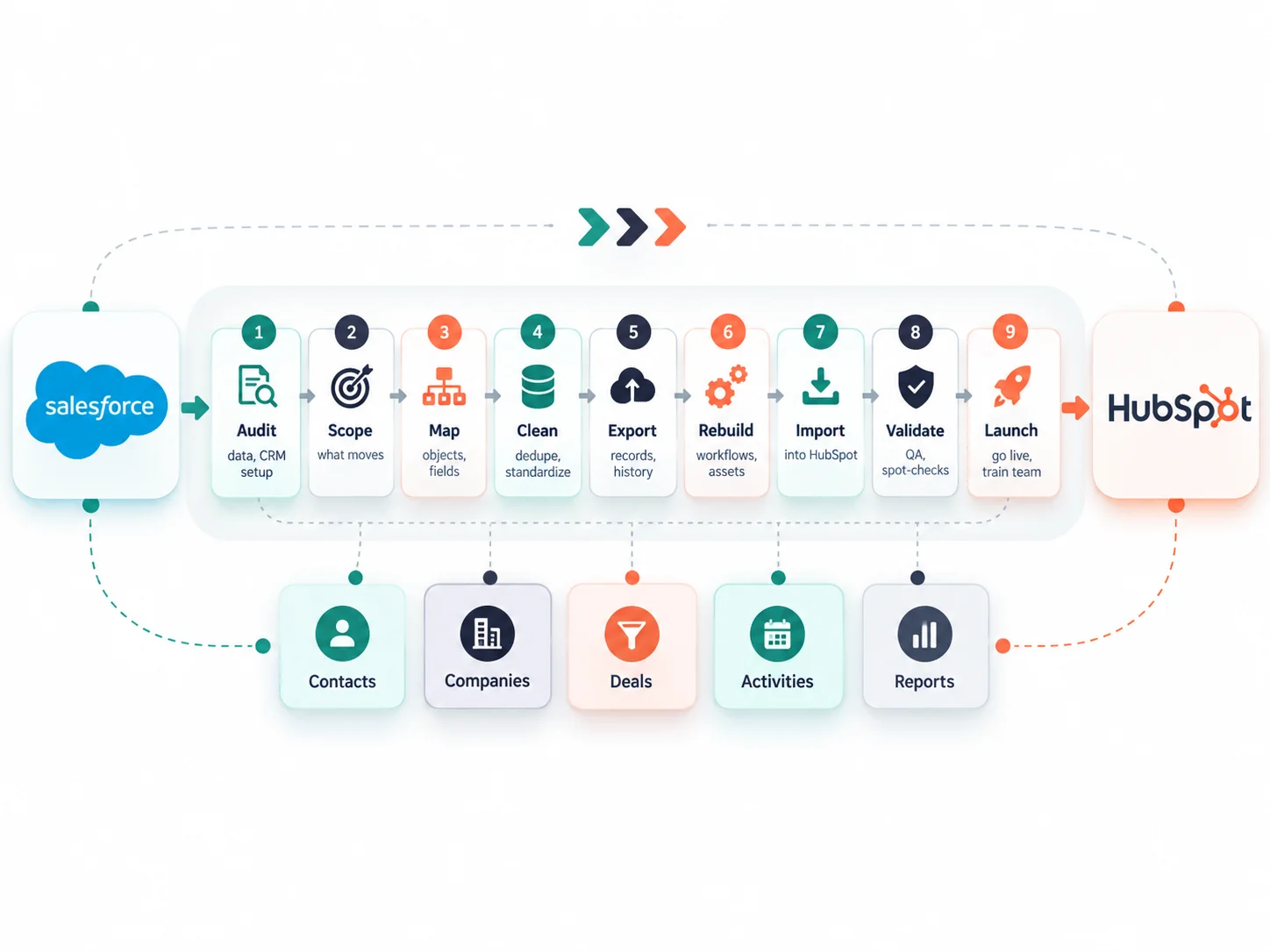
Once you understand the Salesforce environment, you can start planning the migration process. There is no single Salesforce-to-HubSpot migration sequence that works for every company.
A business using mostly standard Salesforce objects has a very different project from one that has spent ten years building custom objects, Apex logic, multiple pipelines, and integrations around the platform.
Here are the steps you should follow for a successful Salesforce to HubSpot migration process, which includes:
Step 1. Decide What You Are Moving Before You Map Anything
Start by defining the migration scope. At this stage, it helps to separate Salesforce data and processes into four groups: migrate, rebuild, consolidate, and archive.
Records and fields your teams still need inside HubSpot belong in the migration group. Automation and CRM processes that still serve a purpose but need to run differently in HubSpot belong in the rebuild group. Duplicate fields, stages, and processes may need consolidation. Older records or configuration that still need to be retained for reference, but not actively used, can remain archived.
This approach matters because “migrate everything” sounds safer than it usually is.
Suppose Salesforce contains 400 custom fields, but only 120 support current processes, reporting, or integrations. Moving all 400 into HubSpot does not preserve value. It creates a larger property library that the new HubSpot administrator will eventually have to untangle.
The Automation Strategy Group uses the same migrate, rebuild, consolidate, and archive approach when planning HubSpot migrations because it forces the project team to decide what each part of the source CRM is supposed to do after the move.
There is another reason to make this decision early: different teams may have different requirements.
Marketing might care about lifecycle and source history. Sales may care more about Opportunity history, Account ownership, and activities. Finance may need revenue records retained for reporting. Legal or compliance teams could have their own retention requirements.
If you wait until the final import to resolve those differences, the technical migration becomes the place where business decisions are being made under time pressure.
Step 2. Create a Clean Backup of Salesforce
Once the scope is clear, you should create a backup before making major cleanup changes. Keep one untouched source copy and work from a separate migration dataset. That distinction becomes useful later when something does not look right.
For instance, imagine that a HubSpot deal arrives with a different close date from the value a sales manager remembers seeing in Salesforce. Without an untouched backup, you may not know whether the value changed during source cleanup, transformation, mapping, or import.
With the original export available, you have a point of comparison.
You should also retain information that the business chooses not to place inside HubSpot. Archiving a record is different from deleting it. Some historical data may still need to remain accessible even though it has no reason to live in the active CRM.
Step 3. Clean the Source Data Before HubSpot Depends on It
Now you can start preparing the migration dataset. Begin with duplicate records because duplicates become harder to fix once HubSpot workflows, associations, reporting, and ownership rules start relying on them.
Then look at field values. Salesforce may contain USA, U.S., United States, and US across the same country property. An industry field might contain both SaaS and Software as a Service. Perhaps a region value changed when the sales team reorganized, but older records still use the previous naming convention.
You have two choices: bring all those variations into HubSpot and fix them later, or standardize them before the migration.
The second option is usually easier.
Ownership deserves the same treatment. If thousands of records still belong to Salesforce users who left the company years ago, decide who should own them in HubSpot before the records arrive.
However, source cleanup should not turn into a six-month exercise designed to make Salesforce perfect.
Focus first on the information that affects the HubSpot migration, record matching, associations, automation, segmentation, reporting, and user experience.
Step 4. Design the HubSpot CRM Before You Fill It With Data
With the source cleaned up, shift your attention to HubSpot. This is one of the most important stages because Salesforce and HubSpot do not use exactly the same CRM structure.
Salesforce separates Leads from Contacts. In HubSpot Salesforce integration, Salesforce Leads and Contacts both sync into HubSpot as contact records. Salesforce Accounts map to HubSpot companies, while Opportunities map to deals. Smart Transfer uses the same basic object direction for supported Salesforce records, including Accounts to Companies, Leads and Contacts to Contacts, Opportunities to Deals, Cases to Tickets, Events to Meetings, and Tasks to Tasks.
Those mappings look simple in a table. In a working CRM, they raise more questions.
Now, take Leads and Contacts.
- What happens when the same person exists once as an older Salesforce Lead and again as a converted Contact?
- Which record contains the more useful qualification history?
- Is email reliable enough to identify the same person?
- What should happen when a Lead has no email address?
These questions affect duplicate handling, lifecycle stages, reporting, and the sales process.
Accounts create another set of decisions. A straightforward B2B company may be able to map Salesforce Accounts directly into HubSpot companies. However, companies using Account hierarchies, Person Accounts, multiple account relationships, or complex parent-child structures need to decide which relationships must still exist in HubSpot.
Opportunities also need more than a name change.
Before moving them into HubSpot deals, define the future pipelines, stages, close-date rules, ownership, associations, and reporting requirements.
Custom objects need their own review as well. HubSpot’s Salesforce integration can import Salesforce custom objects when the required setup and subscription conditions are met, but that does not mean every Salesforce custom object should automatically become a HubSpot custom object.
Sometimes the data fits a standard HubSpot object better. In other cases, the custom object remains important enough to preserve. The right answer depends on what the object represents and how the business plans to use it after migration.
Step 5. Map Salesforce Fields to their HubSpot Destinations
Once the HubSpot model is agreed, you can map the individual fields. A good mapping document should tell the migration team more than “Salesforce field A goes to HubSpot property B.”
It should also capture data type, allowed values, transformations, record relationships, and whether the source field should migrate at all.
For example:
| Salesforce Source | HubSpot Destination | Migration Consideration |
| Lead | Contact | Handle duplicate Lead/Contact records |
| Contact | Contact | Match existing records carefully |
| Account | Company | Preserve required account relationships |
| Opportunity | Deal | Map stages, amounts, owners and dates |
| Picklist | Dropdown property | Standardize allowed values |
| Formula | Property or new calculation | Determine how the value will update after Salesforce |
| Lookup | Association or property | Review the actual relationship |
| Record Type | Custom property/process | Keep only if still operationally useful |
| Custom Object | Standard or custom object | Review individually |
Salesforce Record Types are a good example of why this stage requires context. HubSpot currently allows Salesforce Lead, Contact, Account, and Opportunity record types to be mapped to HubSpot custom properties. That means you can preserve the information and use it for segmentation or automation where it still matters.
However, you should still ask whether the old Salesforce Record Type has a role in the new operating model. If it only existed because Salesforce required separate page layouts for a legacy process, reproducing it in HubSpot may have no benefit.
Field compatibility needs similar scrutiny. HubSpot’s current Smart Transfer documentation lists unsupported Salesforce field types such as calculated and reference fields for the Smart Transfer route. In those situations, the migration team needs to decide whether to transfer a current value, recreate the underlying logic another way, or use a different migration approach.
This is why mapping should happen before selecting the final transfer method.
Step 6. Choose the Right Salesforce-to-HubSpot Migration Method
Now that you know what needs to move, you can decide how to move it. There are several practical options, and larger migrations sometimes use more than one.
Using HubSpot Smart Transfer
For supported Salesforce data, Smart Transfer gives teams a guided path through the migration.
The current version can audit source data, help configure mappings, transfer supported records into HubSpot, clean data after the transfer, and revert a transfer when needed. The transfer itself is one-way from the source platform into HubSpot, and custom field mappings require Data Hub.
Salesforce support currently includes standard records such as Accounts, Person Accounts, Contacts, Leads, Opportunities, Cases, Tasks, Events, Notes, users, and email messages, with specific associations mapped into HubSpot as part of the process. Attachments and Salesforce campaign membership lists can also be handled as one-time post-sync data types.
For a Salesforce environment that mostly relies on supported standard objects, this can remove a significant amount of manual transfer work. However, it does not remove the need for migration planning.
If your Salesforce environment relies heavily on calculated fields, reference fields, unusual objects, or automation that has no direct HubSpot equivalent, you still need to decide what happens to those elements before running Smart Transfer.
Using the native Salesforce integration
The Salesforce integration is particularly useful when Salesforce and HubSpot need to operate together during the transition.
Once connected, HubSpot can import Salesforce Leads, Contacts, Accounts, Opportunities, Tasks, Campaigns, Cases, Events, and supported custom objects. You can also keep selected records synchronized while teams gradually move their processes into HubSpot. This can make a staged migration easier.
For instance, marketing may begin operating from HubSpot while the sales team continues working in Salesforce for a defined transition period. However, two active CRMs introduce their own risks.
You need to define which system owns each property, which direction updates should flow, which records are eligible to sync, and what should happen when both platforms contain different values. Without those rules, “temporary synchronization” can create a larger cleanup project.
Using structured file imports
CSV or structured file imports can still work well for simpler datasets or for migration teams that want tighter control over each transfer batch. The advantage is visibility. You can transform values, separate object groups, control import order, and review the data before HubSpot receives it.
On the other hand, associations and identifiers need careful handling.
For a small number of objects with straightforward relationships, that may be manageable internally. As the number of objects, historical activities, associations, and transformations grows, the amount of manual QA rises quickly.
Using APIs or a partner-led migration
Finally, some Salesforce environments require a more controlled approach. That may be the case when custom objects play a major role, historical activity needs to be preserved in a particular structure, several systems need to change at the same time, or extensive data transformation is required.
An API-led or partner-managed migration gives the project more control over those cases. It is also worth noting that the migration methods do not need to be mutually exclusive. A project might use HubSpot’s Salesforce integration for standard CRM records, controlled imports for selected historical data, and custom development for a smaller set of specialized records. The right combination becomes much clearer once the data audit and mapping are finished.
Step 7. Prepare HubSpot Before Production Records Arrive
Whichever transfer method you choose, avoid using the production migration to build the destination CRM as you go. HubSpot should already have the agreed properties, pipelines, stages, owners, teams, permissions, association structure, and required custom objects in place.
That does not mean every workflow needs to be active. In fact, activating automation too early can create problems.
Imagine importing 30,000 historical contacts that meet the criteria of a new lead-routing workflow. If the workflow is active, HubSpot could begin assigning old records, creating sales tasks, sending internal alerts, or updating lifecycle stages while the migration team is still validating the data.
Instead, prepare the automation but control when it becomes operational. The same applies to email workflows and other customer-facing automation. Migration testing should not accidentally create live communications.
Step 8. Run a Representative Test Migration
Before moving the full Salesforce database, test a smaller set. However, do not make the test dataset unrealistically clean. If your sample contains ten perfect Contacts with no custom fields or unusual relationships, it only proves that perfect records migrate correctly.
Instead, include records that represent the situations your actual database contains.
Bring across an open Opportunity with several Contacts, an existing customer, an unconverted Lead, a former customer’s Account, records owned by different reps, a record with missing data, and examples that rely on custom properties or unusual associations.
If you use multiple sales pipelines, regions, currencies, or business units, include examples from those as well. Once the sample lands in HubSpot, compare it with Salesforce. Also, check names and email addresses, and check:
- Are the owners correct?
- Did Accounts associate with the right Contacts?
- Did Opportunities become the expected deals?
- Did the deal stages translate properly?
- Did dates and currencies retain the right values?
- Do the migrated records appear correctly when you build the reports your team expects to use?
This is also the point where assumptions tend to surface. Perhaps the mapping team discovers that a Salesforce Lead Status needs a different HubSpot property. Maybe a lookup relationship cannot work the way originally planned. Perhaps the Account hierarchy needs adjustment.
That is exactly what the test migration is supposed to reveal. Fix those issues before the full transfer rather than accepting them as post-launch cleanup.
Step 9. Plan the Production Migration Sequence
After the test passes, plan the order in which the production records will move. Associations should drive that sequence.
A deal needs something to associate with. A contact may need a company. An activity needs an existing record to attach to. A custom object may depend on contacts, companies, or another object already being available. Therefore, don’t choose the order simply because one export finished first.
The exact sequence depends on the architecture and the tool being used. However, the migration plan should make sure that the records required for later associations are available before the dependent records arrive.
There is another issue to solve at this point: what happens while the migration is running? Salesforce does not stop changing simply because the migration team has started copying data. Sales reps may continue creating Leads. Opportunities can move stages. Owners can change. New activities appear. If the production migration takes several days, then changes need to be captured.
Depending on the migration approach, you might continue synchronization until cutover, run a final delta migration, or introduce a temporary change freeze. The method matters less than having a documented answer. Otherwise, a migration can reconcile perfectly against Monday’s Salesforce data and still go live on Friday, missing everything that happened during the week.
Step 10. Rebuild the Business Logic Around HubSpot
By this point, your data may be in HubSpot, but the CRM is not finished yet. Now you need to rebuild the processes that made the Salesforce environment operational.
Therefore, start with the automation inventory created at the beginning of the project. For each process, ask what the company still needs it to accomplish. Perhaps Salesforce previously used three separate Flows to manage regional lead assignment. HubSpot may be able to handle the same outcome through one better-structured workflow. If so, recreating three workflows just because Salesforce had three would make little sense.
The same principle applies to nurture programs, lifecycle changes, task creation, sales alerts, customer onboarding, opportunity updates, and data normalization. HubSpot’s migration guidance takes this approach: document the old automation, simplify where possible, and rebuild the required process using HubSpot’s tools.
Integrations should receive the same review. A platform that used to send data into Salesforce may now need to connect directly to HubSpot. Another system might no longer be necessary. A third could remain connected, but HubSpot should now become the source of truth for a particular field.
Do not carry the old technical architecture forward simply because it existed. Reports also need to be rebuilt around the future CRM.
For example, if the sales team expects a pipeline dashboard by region, define what “pipeline,” “region,” “owner,” and “close date” mean in the HubSpot model first. Then build the report from those definitions. Trying to reproduce a Salesforce dashboard screen for screen can preserve reporting decisions that no longer fit the new CRM.
Step 11. Validate the Full Migration Before Cutover
Once the production transfer and rebuild work are complete, move into validation. This is where the migration team should compare the agreed source records with what now exists in HubSpot. Record counts are a starting point, but they are only one part of QA.
A migration can contain the correct number of Contacts and still have the wrong company associations. It can contain every Opportunity but place half of them in the wrong deal stage. Every owner may exist while thousands of records remain assigned to the wrong person.
So, validate the relationships as well as the records.
Review high-value Accounts, open Opportunities, recent customers, important historical records, and records from different territories. Confirm ownership, associations, values, pipeline placement, and dates. Then test the workflows and integrations against real use cases.
Create a new inbound lead. Make sure it reaches the right owner. Move a deal through the pipeline. Check whether the expected automation runs. Update a field in an integrated system and confirm that HubSpot responds correctly.
Finally, involve actual users. Ask sales reps to work records. Ask managers to review the pipeline. Ask marketing to create a segment. Ask operations to test processes that depend on CRM data. A technical QA team can confirm that records exist. The people who use HubSpot every day will tell you whether the CRM works.
Only after those checks pass should you finalize the cutover and move Salesforce into the agreed read-only, archive, or retirement state.
Read More: HubSpot vs. Salesforce for Mid-Market Companies
Most Common Challenges While Migrating from Salesforce to HubSpot
Even well-planned migrations can run into issues. Here are some of the challenges you can face during the migration process:
1. Salesforce Leads and Contacts can create confusing contact records
One of the first differences teams encounter is the way the two platforms handle people. Salesforce maintains Leads and Contacts separately. HubSpot’s Salesforce integration, by comparison, represents Salesforce Leads and Contacts as HubSpot contacts.
So, what happens when the same person appears in both Salesforce objects?
If the records have reliable email addresses, matching becomes easier. However, older databases often contain Leads without email addresses, Contacts using personal addresses, duplicate emails, and records created before the company introduced strict data rules. For that reason, define the matching and deduplication logic before migration.
You should also review Lead-specific information. If Salesforce Lead Status, Rating, Lead Source, or custom qualification fields still matter after conversion, decide where that information should live in HubSpot. Otherwise, you may successfully move the person while losing part of their qualification history.
2. Associations can break even when the record count is correct
This is another area where simple migration checks can be misleading. Suppose Salesforce contains 50,000 Contacts, and HubSpot also contains 50,000 after the transfer. At first glance, the migration appears successful.
However, if 8,000 Contacts are no longer associated with the right company, sales users will immediately feel that something is wrong.
The same applies to Opportunities and Deals. A deal may exist in HubSpot but lose the Account or Contact Roles that gave the rep the context they used in Salesforce.
Current Smart Transfer support includes specific Salesforce associations such as Contact-to-Company, Opportunity-to-Company, Opportunity Contact Roles to Contact-to-Deal, and Case associations. That is useful, but you still need to validate the relationships after transfer. Do not treat an object count as proof that its relationships survived.
3. Custom properties can turn the new HubSpot portal into a copy of the old CRM
Salesforce environments often contain fields created for reasons that no longer apply. Perhaps an integration required a particular property five years ago. Maybe a sales process changed but the old fields remained. Or several departments created their own versions of the same information. If the migration team maps every Salesforce field automatically, HubSpot inherits that history.
Instead, use the migration to ask a simple question: What will this property do after launch? If it drives a workflow, supports reporting, provides sales context, powers an integration, or meets a compliance requirement, there is a clear reason to keep it. If nobody can answer the question, the field probably deserves more review before it becomes part of the new portal.
4. Salesforce automation may not need a direct HubSpot equivalent
Another common issue appears when teams treat the migration like a translation exercise. Salesforce Flow A becomes HubSpot Workflow A. Flow B becomes Workflow B. Assignment Rule C becomes another workflow.
Technically, that may work. Operationally, it can preserve years of unnecessary complexity. HubSpot provides you with different tools and a different CRM structure. Therefore, ask: What result is the automation supposed to produce?
From there, design the simplest HubSpot process that delivers that outcome. The difference may seem small during implementation, but it has a major effect on how easy the portal is to maintain six months later.
5. Reports can stop matching even when the data migrated
Reporting differences are often the last migration issue leadership notices and the first one they care about. The CRO opens HubSpot and sees a different pipeline number from the old Salesforce dashboard. That does not automatically mean the migration lost data.
The difference could come from Opportunity stage mapping, currencies, close dates, report filters, owners, archived records, or different definitions of what counts as an active pipeline. Marketing reports can run into the same problem with lead source, lifecycle stages, campaign history, or qualification.
When the numbers differ, trace the metric back to its source fields before adjusting the dashboard. First agree on the business definition the company wants going forward. Then confirm that HubSpot contains the data required to calculate it.
How The Automation Strategy Group Can Help
The Automation Strategy Group is a certified HubSpot Solutions Partner working with US B2B companies that need to move from Salesforce into HubSpot. The team starts with the Salesforce environment, reviews the contacts, Accounts, Opportunities, activities, ownership, properties, workflows, integrations, and reporting requirements still used by the business, and then maps those requirements into the HubSpot setup. From there, we can handle CRM data preparation, HubSpot configuration, pipeline setup, property mapping, workflow rebuilding, testing, validation, integrations, and team handover under the same migration project.
Our approach also provides the migration team room to clean up the old CRM rather than automatically recreating it. Fields and processes can be separated into what should migrate, what needs to be rebuilt using HubSpot, what can be consolidated, and what should remain archived.
We are a US-based, senior-only HubSpot consulting team and hold HubSpot accreditations in CRM Data Migration, CRM Implementation, Solutions Architecture Design, Custom Integration, and Service Implementation.
Planning a Salesforce to HubSpot migration? Schedule a free consultation with one of our HubSpot migration experts.
Frequently Asked Questions
How do you migrate from Salesforce to HubSpot?
Migrating from Salesforce to HubSpot starts with reviewing the Salesforce environment and deciding which records, fields, relationships, and processes still need to exist after the move. Once that scope is clear, the migration team can design the HubSpot structure, map the data, clean the source records, run a test transfer, complete the production migration, and rebuild the required automation and integrations.
Can Salesforce Leads be migrated to HubSpot?
Salesforce Leads can be imported or transferred into HubSpot, where they are represented as contact records under the current Salesforce integration and Smart Transfer mappings. However, because Salesforce Leads and Contacts can both become HubSpot contacts, the migration team should establish duplicate handling and decide how to preserve Lead-specific qualification information.
Can Salesforce custom objects be migrated to HubSpot?
Salesforce custom objects can be brought into HubSpot through supported Salesforce integration capabilities when the HubSpot setup and subscription support the required custom-object structure. However, each object should be reviewed before migration because the equivalent may be a standard HubSpot object, a HubSpot custom object, or a different CRM structure altogether.
What happens to Salesforce Opportunities in HubSpot?
Salesforce Opportunities typically map to HubSpot deals. However, the migration still needs to account for pipelines, deal stages, amounts, owners, close dates, company associations, and Opportunity Contact Roles so that the resulting HubSpot deal supports the same business process. Smart Transfer currently maps Opportunities to Deals and supports key Opportunity associations.
Can Salesforce Accounts be migrated to HubSpot?
Salesforce Accounts generally map to HubSpot companies. For straightforward B2B structures, that mapping can be relatively simple. However, Account hierarchies, Person Accounts, multiple relationships, and custom Account structures may require additional planning before the final mapping is agreed.
Can Salesforce and HubSpot run at the same time during a migration?
Salesforce and HubSpot can operate together during a staged migration using HubSpot’s Salesforce integration. In that situation, the migration team needs to define which records should sync, which system owns each important field, and how changes should flow between the platforms. Without those rules, running both CRMs can create conflicting values instead of making the transition easier.
Should you use HubSpot Smart Transfer for a Salesforce migration?
HubSpot Smart Transfer can work well when the Salesforce data you need falls within its supported objects, associations, and field types. It can audit the source, configure transfer settings, move supported records, clean data afterward, and revert transfers where needed. However, more customized Salesforce environments may still require the Salesforce integration, structured imports, APIs, or a combination of migration methods.
Should Salesforce data be cleaned before migration?
Yes, but the cleanup should focus on information that affects the migration and the future HubSpot portal. Duplicate records, inconsistent values, inactive ownership, unused properties, and broken relationships should be reviewed before the production transfer wherever practical. Otherwise, those issues become part of the new CRM and can begin affecting workflows, segmentation, reporting, and users immediately.
Do Salesforce workflows migrate automatically to HubSpot?
Salesforce automation should normally be reviewed and rebuilt rather than treated as data that simply transfers between the systems. HubSpot recommends documenting existing Salesforce automation, reconsidering the design, simplifying where possible, and rebuilding the required processes using HubSpot workflows.
Do you need a HubSpot partner for a Salesforce migration?
A simple Salesforce environment built mostly around standard objects may be manageable with an experienced internal HubSpot team. However, partner support becomes more useful when the project involves extensive custom fields, custom objects, integrations, historical records, complicated associations, Salesforce automation, or a HubSpot implementation that needs to happen alongside the migration. In those situations, the difficulty is usually not moving the records but making sure the new CRM operates correctly once Salesforce is gone.